
Google storage full? Here’s what to do
“Your storage is almost full”: when that message shows up, Gmail, Google Photos and Google Drive are all affected, because they share the same space. This guide first shows you what is really using it, then seven ways to free it up, from the quickest to the most effective. Every one of them works without an app; where Diluza can do it faster, we say so, and we say what it does not do.
What is using your 15 GB
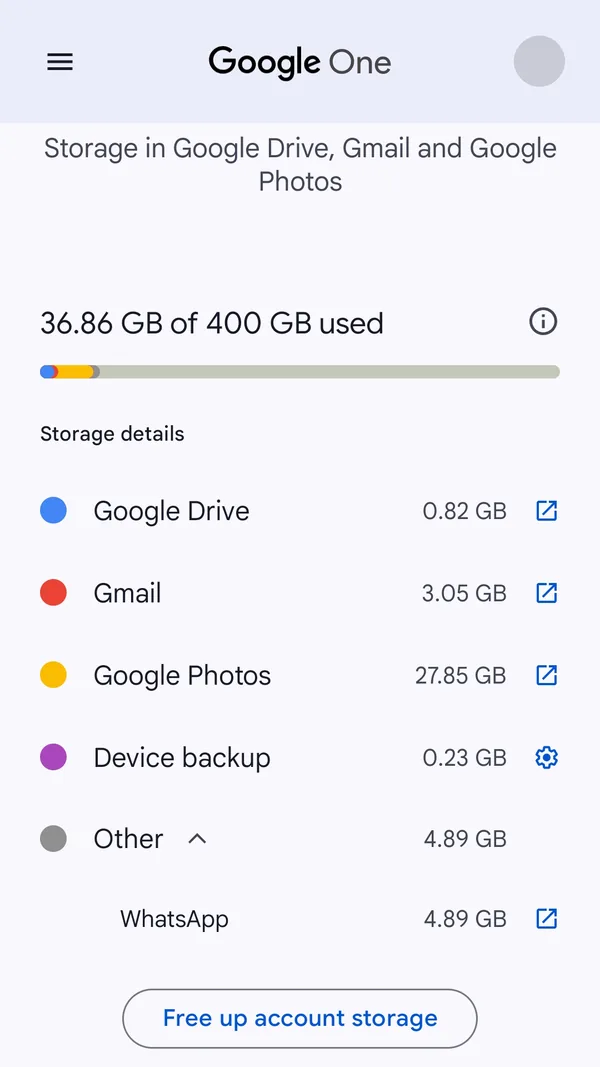
Every Google account includes up to 15 GB of free storage, shared across Gmail, Google Drive and Google Photos. Two backups count against it too: WhatsApp’s on Android, and your phone’s Android backup (SMS and MMS, call history, device settings, app data). If you pay for a Google One plan, that plan is shared the same way.
A file someone shares with you only counts against its owner. It does use your storage if you make a copy of it, if you add your own files to a folder shared with you, or if its ownership is transferred to you.
- Open one.google.com/storage while signed in to the right account. On a phone, Storage in the Google Drive app’s menu leads to the same page.
- Look at the breakdown: Google Drive, Gmail and Google Photos, but also Device backup where there is one and, once you expand “Other”, apps such as WhatsApp.
- Start with whichever service uses the most: that is where every deletion frees the most space.
What happens when your storage is full
Your files stay safe and you can still sign in to your account, but nothing new gets in:
- Gmail: you can no longer send or receive email; messages sent to you are returned to the sender.
- Google Photos: your photos and videos stop backing up.
- Google Drive: you cannot upload new files, syncing with your computer stops, and you cannot create new Docs, Sheets or Slides files. Until you free up space, no one can edit or copy your files.
- WhatsApp: its backup draws on the same space, so it is affected too.
If you stay over your quota for two years, Google may delete your content in Gmail, Google Photos, Google Drive and your device backup. It gives you at least three months’ notice, and time to free up space or download your data.
1. Empty the Google Drive trash
A file in the Drive trash keeps using space until it is deleted for good, which happens automatically after 30 days. If you have just cleaned up, that is often where the space you were expecting is hiding.
- On a computer, open the Google Drive trash. On a phone: Drive app, menu, Trash.
- Check that nothing in it needs to be restored.
- Click “Empty trash”, then “Delete forever”.
2. Find the largest files in Drive
A handful of files is often enough to fill an account: an exported video, a .zip archive, an old computer backup. Google Drive can sort them by size.
- In Google Drive on a computer, click Storage in the left-hand menu: your files are listed from largest to smallest.
- For each large file, ask whether it really needs to live in the cloud. You can download it to an external drive before deleting it.
- Then empty the trash (step 1).
3. Delete duplicates in Google Drive
Drive happily keeps several identical files: the same photo uploaded twice, a folder copied “just in case”, a “report (1).pdf” next to “report.pdf”. Every copy counts in full.
By hand, sort a folder by name or size and look for neighbouring files of the same size. That works for one folder; for a whole Drive it takes far longer, especially when the copies have different names or sit in different folders.
4. Delete your largest videos from Google Photos
In Google Photos, videos almost always weigh the most: a minute of HD video takes as much space as dozens of photos, and far more in 4K. Deleting ten long videos often frees more space than hours of sorting photo by photo.
- In the Google Photos app, tap “Manage storage” (or “Clean up space”): the Google One storage manager opens and suggests, among other things, your large videos.
- Delete the ones you no longer need. A video deleted in Google Photos is also removed from your phone and from every device with backup turned on.
- Deleted items stay in the Google Photos trash for 30 days before they are permanently deleted. To skip the wait: Collections, Trash, More, “Empty trash”.
Since June 1, 2021, every new photo and video you back up counts against your storage, whatever its quality; only those backed up in “High quality” before that date stay free. To slow things down from here, pick “Storage saver”: in Google Photos, tap your profile picture, open the backup settings, then Photo and video quality. Future backups will be slightly compressed.
5. Slim down the WhatsApp backup
On Android, the WhatsApp backup (your chats and their media) counts toward your Google account storage. Videos are often a good share of it.
- In WhatsApp, open Settings, Chats, Chat backup. The screen shows the size of the backup and, under the videos option, how much of it is video.
- If you do not need your videos back on a new phone, turn off the option that includes videos.
- In Settings, Storage and data, Manage storage, delete large files and media that were forwarded many times.
- Run a new backup from the Chat backup screen: the media you deleted will no longer be in it.
You can also delete the whole backup from Google One: in the Google One app, Storage, Free up account storage, then WhatsApp under “Clean up other items” and “Delete backup”. On a computer, go to one.google.com/backup/management/whatsapp.
6. Clear out Gmail
Diluza does not clean Gmail: this part happens in Gmail itself. Attachments are the best place to start.
- In Gmail’s search bar, type
has:attachment larger:10Mto list emails over 10 MB that have an attachment. - Select the ones you no longer need and delete them. Repeat with
larger:5Mif needed, or witholder_than:2y has:attachmentfor attachments over two years old. - For old newsletters, try
category:promotions older_than:1y. - Then empty Trash and Spam: what they hold counts against your storage until it is deleted for good. Trash empties itself after 30 days.
7. Use Google’s storage manager
Google has its own clean-up tool. On a computer, open one.google.com/storage and select “Clean up space”. On a phone, it is the “Free up account storage” button below the breakdown in the Google One app, or “Manage storage” in Google Photos, Drive and Gmail. It suggests items to delete, such as blurry photos, screenshots and large videos, and lets you clean up service by service.
Still full after deleting files?
- The trash has not been emptied. Drive, Gmail and Google Photos empty theirs after 30 days. Until then, what they hold can still use space.
- The counter has not caught up. After a large deletion, Google normally takes 48 to 72 hours to update your storage figure.
- Automatic backup has resumed. If Google Photos backup is on, photos and videos waiting to back up fill the space as soon as it frees up.
- The photos you deleted did not count. Photos backed up in “High quality” before June 1, 2021 do not use your storage: deleting them frees nothing.
- Forgotten backups. The WhatsApp backup and the phone’s Android backup both show on the Google One storage page.
- The wrong account. If you have several Google accounts, check that you are cleaning the one that is full.
Should you pay for more storage?
Google One plans start at 100 GB; prices vary by country and are listed on the Google One plans page. Clean up before you pay: you will pick a smaller plan, or find you do not need one at all. After a purchase, the extra storage can take up to 24 hours to become available.
If you already pay, regular clean-ups can keep you from moving up a tier. And a Google One plan can be shared with up to 5 family members: one subscription for the whole household, with everyone’s content kept private.
In short
- Check how your storage is split at one.google.com/storage.
- Empty the Google Drive trash.
- Delete the largest files and the duplicates in Drive.
- Delete long videos from Google Photos, then empty its trash.
- Slim down the WhatsApp backup.
- Delete large attachments in Gmail, then empty Trash and Spam.
- Only then, consider a bigger plan.